Loading version info...
Other platforms:

Your AI-powered notes companion for Windows, macOS, and Linux
Loading version info...
Other platforms:
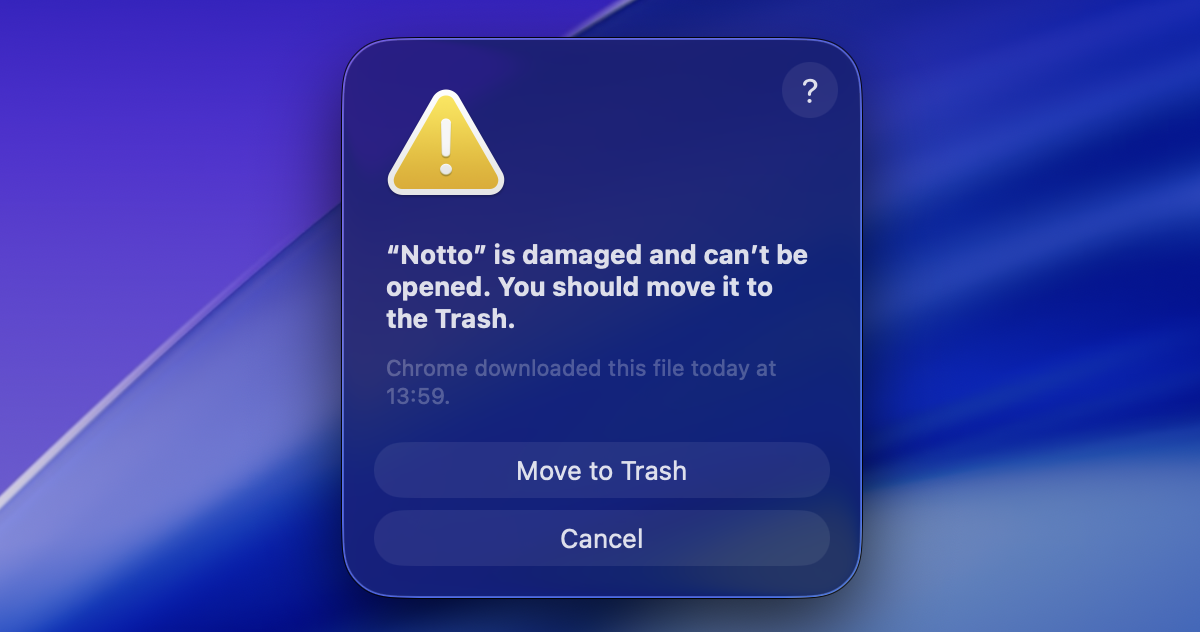
Newer macOS versions may show a "damaged" warning. This is a common security check for new apps. Here's how to fix it in 30 seconds:
If you see a message saying "Notto is damaged", do not move it to the Trash. Click "Cancel".
 Screenshot: mac-tahoe-step1.png
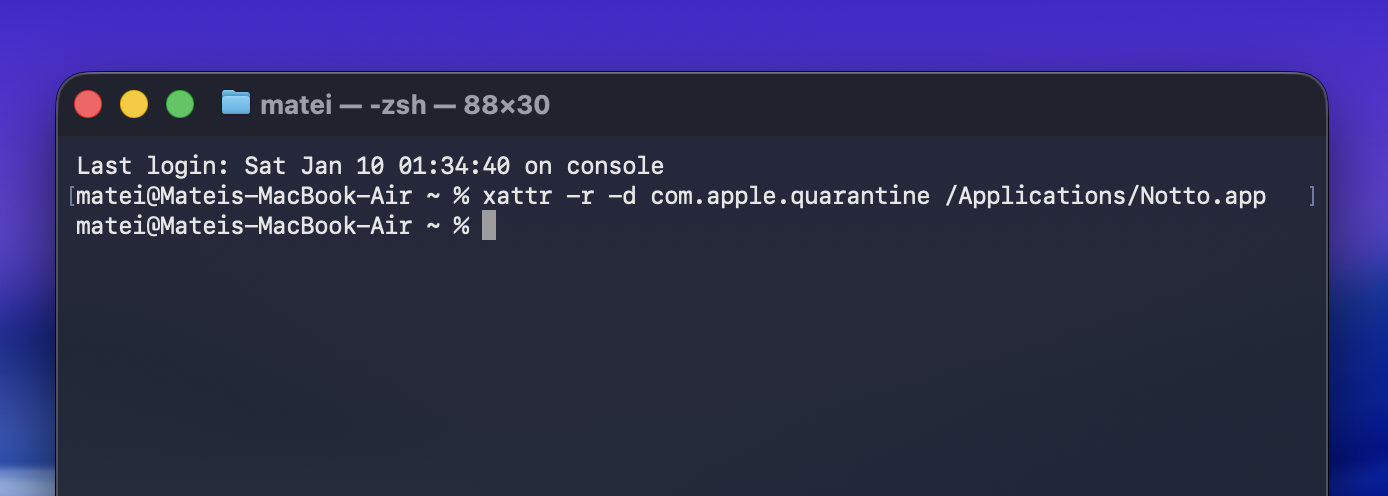
Open Terminal (search for it in Spotlight) and paste the following command, then press Enter:
xattr -r -d com.apple.quarantine /Applications/Notto.appThis is a one-time setup. Future updates will install automatically.
 Screenshot: mac-tahoe-step2.png
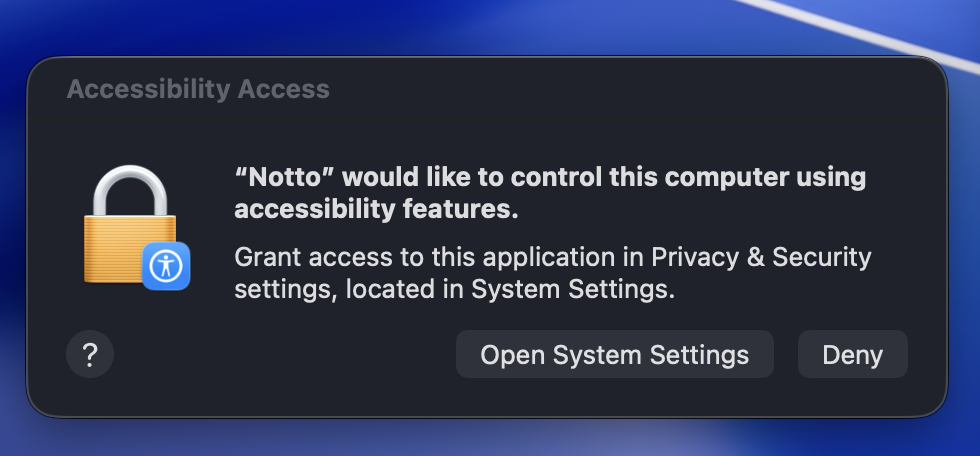
When prompted, click "Open System Settings" and toggle the switch for Notto to allow accessibility access. This is required for meeting summaries.
 Screenshot: mac-tahoe-step3.png
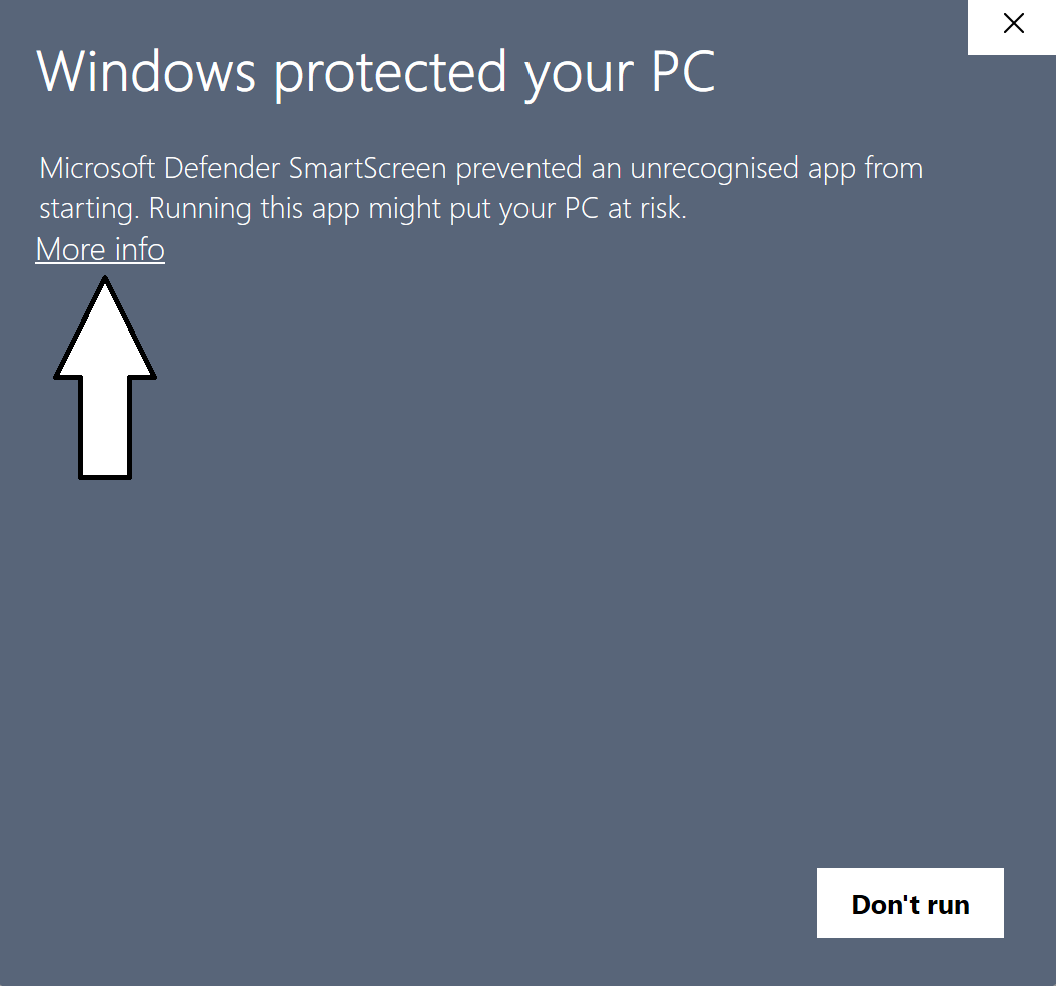
Windows may show a security warning because this app is rather new. Don't worry—it's safe and secure! Here's how to proceed:
When you see "Windows protected your PC", click the "More info" link.
 Screenshot: win-step1.png
After clicking "More info", the "Run anyway" button will appear. Click it to proceed.
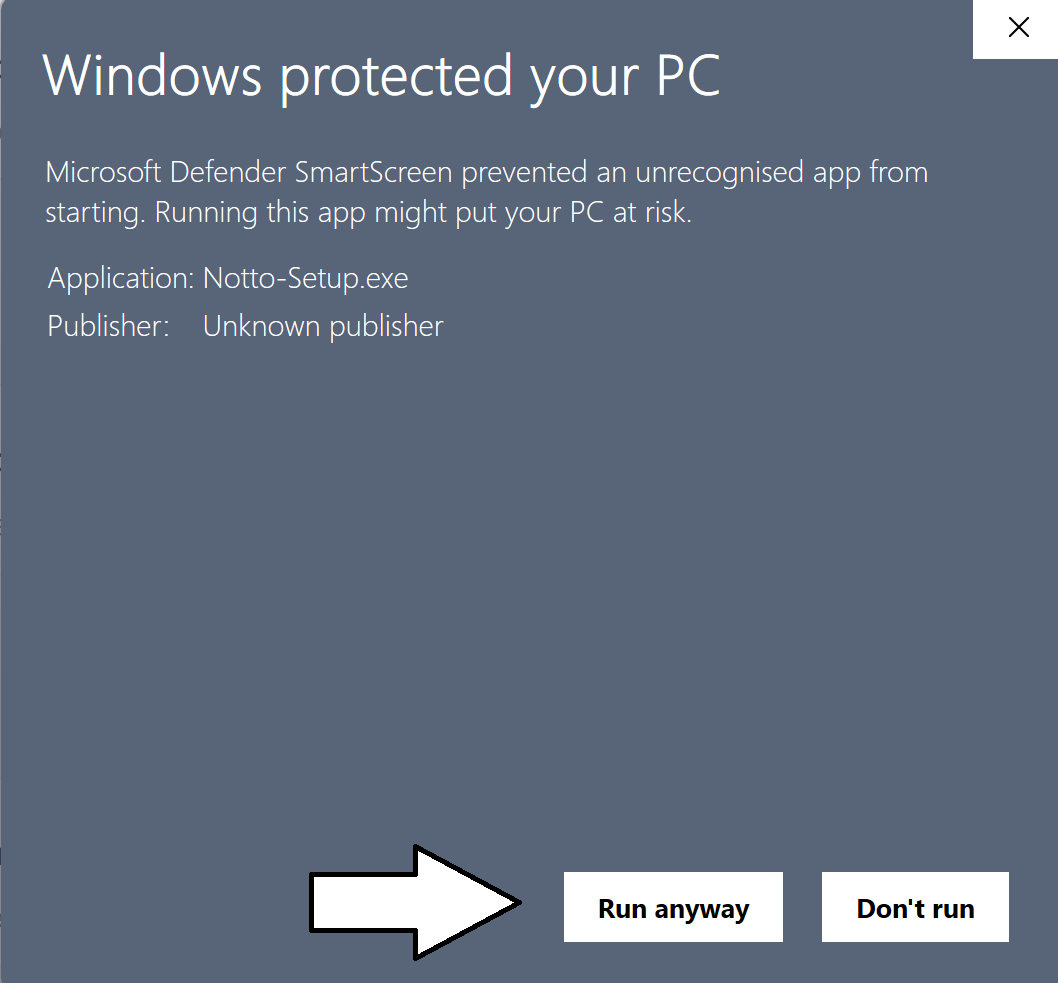 Screenshot: win-step2.png
The installer will now run normally. Follow the prompts to install Notto.
Older macOS versions may show a security warning for new apps. Here's how to proceed:
When you try to open Notto, macOS may show a warning. Click "OK" to dismiss it.
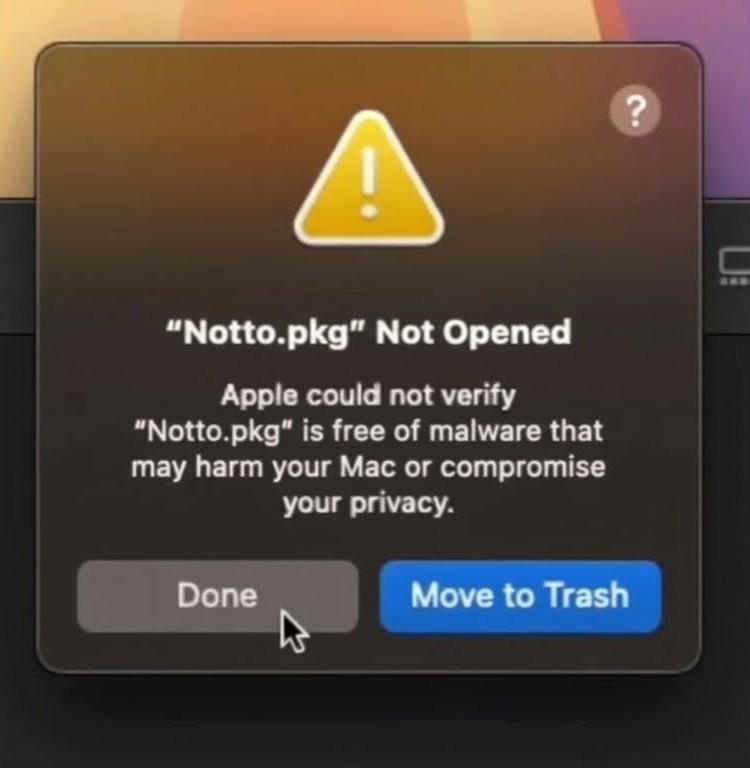 Screenshot: mac-step1.jpeg
Go to System Settings > Privacy & Security and scroll down to the Security section.
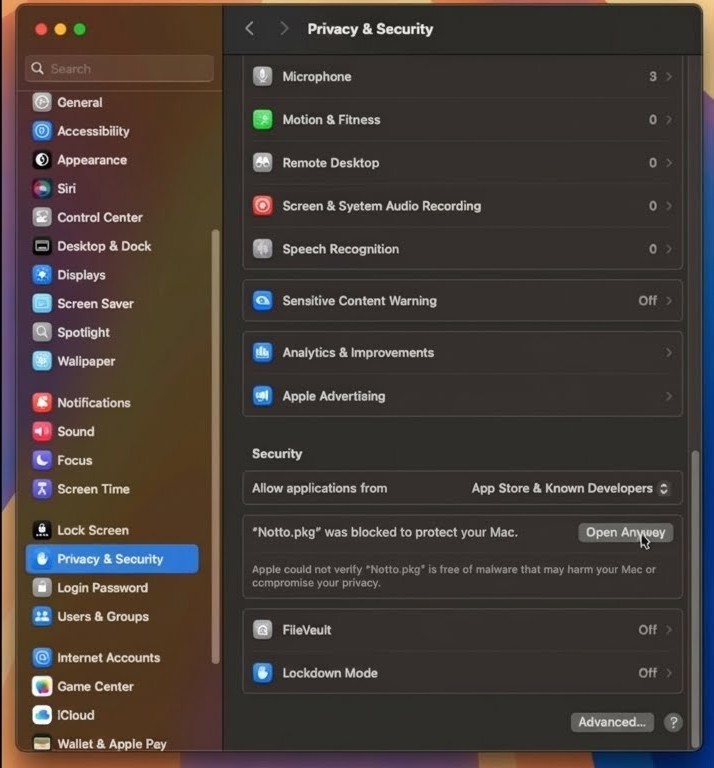 Screenshot: mac-step2.jpeg
Click the "Open Anyway" button next to Notto, then click "Open" in the confirmation dialog.
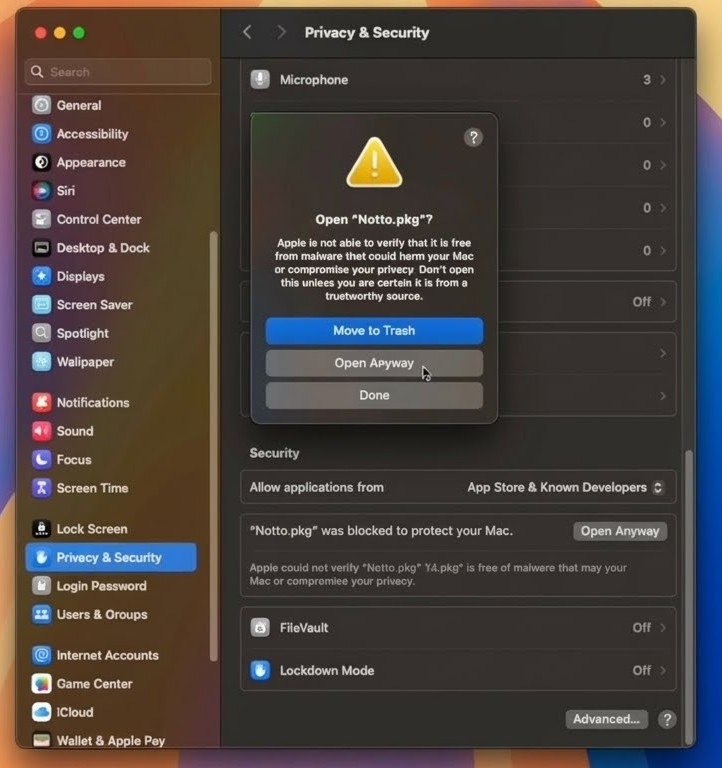 Screenshot: mac-step3.jpeg
Enter your system password or use Touch ID to authorize the app. Notto will now open!
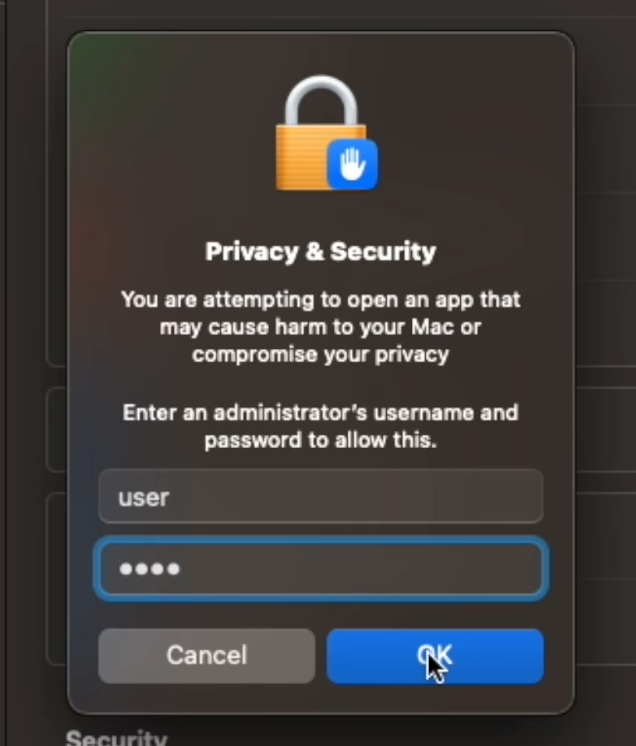 Screenshot: mac-step4.png
Make the AppImage executable and run it:
chmod +x Notto-*.AppImage./Notto-*.AppImage